• Home
  • About Me
  • Contact Me
  • Downloads
  • White Papers
  • Web Sites
  • Post List
  • Articles
  • FAQ

Olof Simren - Microsoft Dynamics 365 Business Central Blog

  • Home
  • About Me
  • Contact Me
  • Downloads
  • White Papers
  • Web Sites
  • Post List
  • Articles
  • FAQ

Parallel Routings

June 30, 2016 Posted by Olof Simren Manufacturing 17 Comments

My last post about adding a field to the item tracking lines turned out to be very technical, so this time I am doing a post that is completely without any programming or changes to the application.

The topic is parallel routings in Microsoft Dynamics NAV, it is nothing new but something that I get a fair amount of questions about and someone once suggested that I should write a blog post about it. So, here it is! 🙂

Parallel routings (sometimes also referred to as parallel sequences) are used when multiple manufacturing operations/processes can or is need to be performed simultaneously by routing the material that is being worked on to multiple work centers. The reason to do this can either be to shorten the production lead time or because some of the material is need to be worked on at different work centers. The opposite is a serial routing where each operation takes place after each other (or potentially overlapping).

The two types of routings can be illustrated as below, where the boxes corresponds to operations in a routing that are carried out from left to right.

Parallel-Routing-Illustration-Dynamics-NAV

The two above options are in Dynamics NAV defined through the Type field in the header of the routing (where Serial is the default value).

Production-Routing-Type-Dynamics-NAV

When you setup a parallel routing it is important to display the two fields called Previous and Next Operation on the lines of the routing. Those two fields are used to define where the sequence is going to be split and where it is joined again.

The below example corresponds to the parallel routing in the above illustration, where the first operation (10) is a cutting operation that cuts a metal sheet into multiple parts. The parts are then separated; some goes through a plating process (20) and then an inspection (30) while other parts at the same time are going through a rolling process (40). Then in the end the parts are married in a welding process (50) and a final inspection (60). Note that where the operations are split into two we need to define the previous operation as 10 for both the parallel operations (20 and 40) and for operation 10 we need to define that the next operations are 20 and 40, this is done by listing them with a pipe (|) in between. Then where they join again you need to define the last two operations to be the previous operation (in this case 30|40 for operation 50).
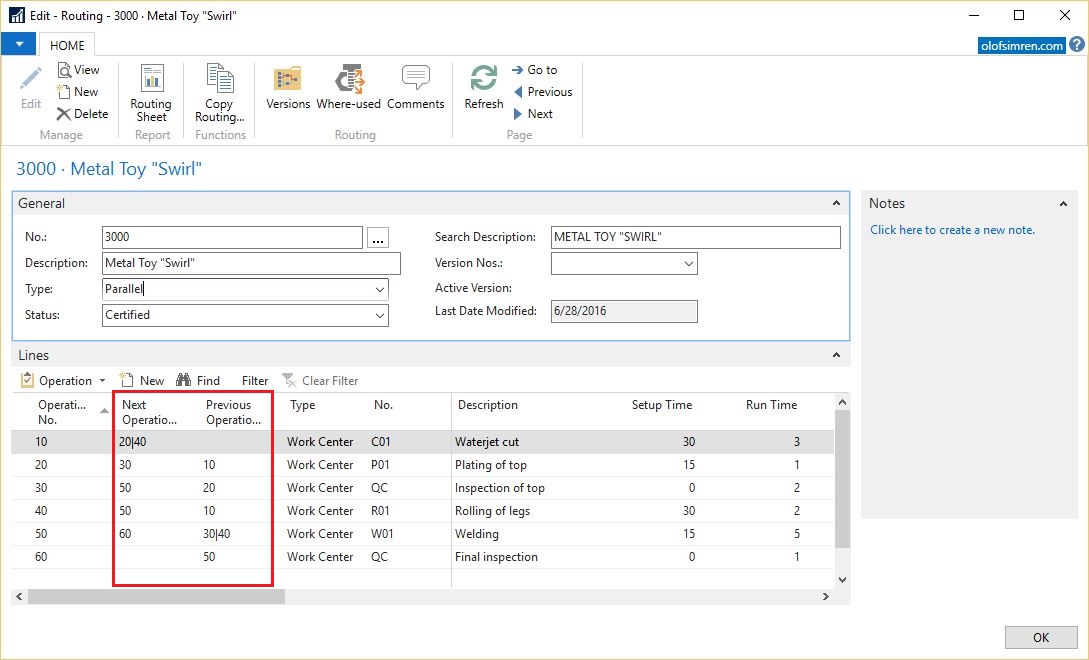
Parallel-Manufacturing-Routing-Dynamics-NAV

The run time, setup time, wait time, etc. can be setup for each of the operations just like if it was a ‘regular’ serial routing (see production lead time using routings).

How you define your operation numbers are up to you, I kind of like to keep it simple and just assign numbers with an increment of 10. I have seen 20.1, 20.2, etc. for parallel operations as well, and using letters as part of the operations could also be an option.

You can obviously both use work centers and machine centers when setting up parallel routings.

The routing have to start and end with single operations, otherwise you would get an error message when you try to certify the routing.

Now we have our routing and we can test it by creating a production order, in the below example I have create a production order for 1000 pieces. I will start with refreshing it with the scheduling direction backwards (this is to me by far the most common way and also how MRP does it), the result is then according to below screenshot. Operation 20 starts right after operation 10, and operation 30 right after operation 20. Then operation 40, which should be carried out simultaneously to 20 and 30 is scheduled to end at the same time as operation 30. This creates what sometimes is referred to a ‘float’ in the beginning of operation 40.

Backward-Production-Order-Routing-Dynamics-NAV

If I then refresh it again with the scheduling direction forward you can see that operation 40 is moved to start at the same time as operation 20, this creates the ‘float’ in the end of the operation 40.
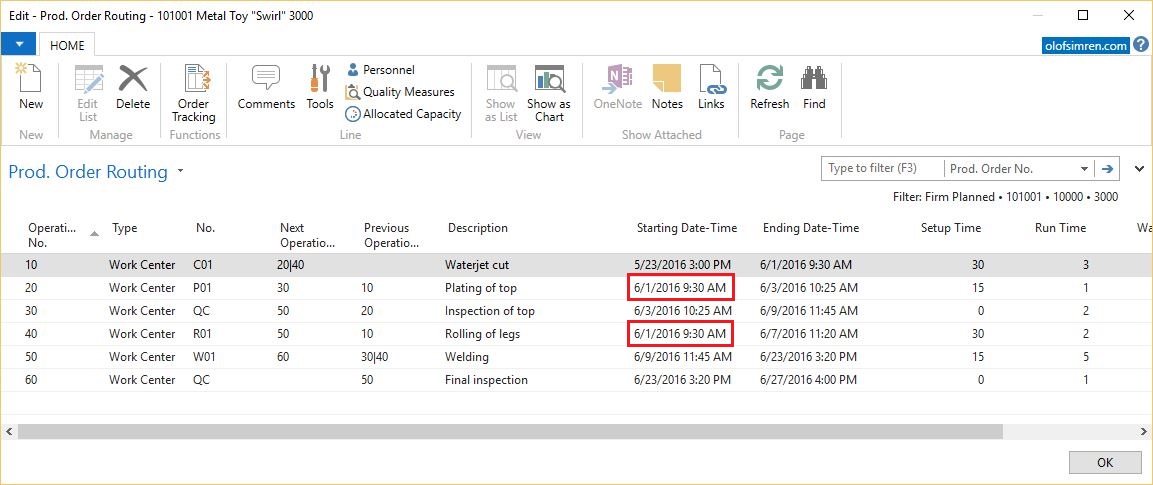
Forward-Production-Order-Routing-Dynamics-NAV

That’s all there is to it, I hope the above clarifies parallel routings in Dynamics NAV and gives an insight to how it can be setup.

During implementations I have also heard users mentioning ‘overlapped’ routings where one operation can start before the previous operation is finished. In Dynamics NAV an overlapping operation can be accomplished in both a parallel and serial routing using the Send Ahead Quantity feature (see my previous blog post about Production Lead Time using Routings for more information about the send ahead quantity). There is no special type of routing called Overlapped in Dynamics NAV.

Have a great day!

Feedback and comments are always welcome, and remember to share this post if you found it useful. 🙂

Share this:

  • Share on Facebook (Opens in new window) Facebook
  • Share on X (Opens in new window) X

Related


Discover more from Olof Simren - Microsoft Dynamics 365 Business Central Blog

Subscribe to get the latest posts sent to your email.

Tags: CapacityLead TimeParallel RoutingProductionProduction OrdersRouting
17 Comments
Share
5

About Olof Simren

I am a Microsoft Dynamics NAV and 365 Business Central Expert, I started implementing Microsoft Dynamics NAV in 2002, back then it was called Navision Attain. Throughout the years there has been many exciting implementations in different parts of the world, all of them with different challenges but with one common theme; manufacturing. As a consultant, I bring over 20 years of experience in implementing Microsoft Dynamics NAV and 365 Business Central within manufacturing and distribution companies. The services I offer includes project management, consultation, development and training. Feel free to contact me if you need help with anything related to Microsoft Dynamics NAV or 365 Business Central. I work through my company Naviona where I team up with other skilled Microsoft Dynamics NAV and 365 Business Central Experts.

You also might be interested in

Total Cost Allocation for Multiple Outputs

Jul 29, 2014

To allocate the total costs posted against a production order[...]

Assembly or Manufacturing?

Jul 20, 2014

With Dynamics NAV 2013 came the assembly management. It is[...]

Default Dimension Priorities for Production Order Components

May 4, 2014

In one of my earlier blog posts, Dimensions on Production[...]

17 Comments

Leave your reply.
  • Alex Paninder
    · Reply

    October 19, 2016 at 10:03 AM

    First of all, I would like to thank you for your great blog. Finding it has helped me a lot concerning different issues in Dynamics NAV.
    I have one question concerning parallel routings. If you check the help wizard it states that you can go with two parallel routings. After doing som trial and error myself it seems that three parallel routings work as well. But how about four or five?

    You might wonder why I’m trying such a thing. Well, I have a customer how does modifications to cars.
    This means that there will be a lot of routings to that particular car. One person might work with electricity while another person takes out a seat and a third person is installing communication equipment. Do you know if this is possible?

    I’m well aware that the planning will get complicated 🙂

    • Olof Simren
      · Reply

      Author
      October 19, 2016 at 8:25 PM

      Hi Alex,
      Yes, I believe you can do as many as you can fit into the next and previous operation fields.

      /Olof

  • Alex Paninder
    · Reply

    November 14, 2016 at 9:27 AM

    Hello again. After some communication with Microsoft you cant use as many parallel operations as we thought. The validation gets to complicated leading to freeze and disconnect. Emperical trial and error resulted in maximum 30 operations. Might be helpful for someone out there.
    /Alex

    • Olof Simren
      · Reply

      Author
      November 14, 2016 at 10:18 AM

      Thanks for the info, good to know.

      /Olof

  • Joe
    · Reply

    November 22, 2016 at 5:00 AM

    Hello,
    is the a way to prevent the Overlapped in Dynamics NAV?
    We want the routing to be outputed by order and the is not error that stops the user to post routings in the “wrong” order.
    Thanks

    • Olof Simren
      · Reply

      Author
      November 22, 2016 at 12:00 PM

      Hi Joe,
      Can you specify what you mean with ‘Overlapped’?
      A ‘regular’ routing is serial where one operation is completed after the other (if you don’t use the send ahead quantity). Is this what you want?

      /Olof

      • Joe
        · Reply

        November 22, 2016 at 12:57 PM

        Hi,
        Thank you for your comment.
        I didn’t express myself correctly.

        is there a way to prevent posting the routing output journal not by the order of the Item’s route.
        Example:
        If I have 3 machines that needs to be posted ,the standard NAV allows me to post the 3rd machine before i post the first 2, and I would like to prevent it.
        I thought defining serial on the route will allow it but i guess it is only for calculation purposes.
        I hope i’ve been clear enough for you to answer.

        Thanks in advance

        • Olof Simren
          · Reply

          Author
          November 22, 2016 at 2:16 PM

          Hi Joe,
          I understand what you are looking for now.
          To accomplish this you will have to do a modification to NAV, standard NAV will always allow you to post the outputs in any order.

          /Olof

  • Huub Aerts
    · Reply

    September 13, 2018 at 6:42 AM

    Hi Olof,

    I’m a NAV developer, now in a role of NAV consultant at a Production Company. A new world is opening with over 400 production people, machinery, and multiple locations. You’re blogs are really a big help for me in understanding Manfacturing in NAV. my last course manufacturing was in version 2.60 (1999).
    I have an interesting case. in a BOM on the 2nd or 3rd level I have an Item (also make to order) which is in the BOM with a quantity of 2. Because only 1 welder can work on this item simultaneously they have put the concurrect capacities in the Routing to 2. But Now we have some big orders 13 pieces. and NAV uses in the planning only 2 welders. we have more than 50 welders. the system should use 26 people. a welder is setup as a machine center.
    What are we doing wrong?
    Hereby already thanks for the help.

    • Anil
      · Reply

      October 9, 2018 at 8:17 AM

      Hi,
      If used the old Routing then Nav will schedule 2 welders for 13 pieces (eg., 1 piece require 10 min with 2 welders so nav will allot 130 min for the production), If you want to use 26 welders then create a Work center with capacity as 26 and create a new Routing linking the new work center or Create a new Version of the same Routing and mention the revised Concurrent capacity i.,e 26 and update the Routing in Item card which will calculate as per the new capacity. (Capacity will not change based on the quantity of production like BOM, In order to increase the capacity new work center or Routing needs to be created with revised capacity).

  • Andy Vinson
    · Reply

    November 25, 2019 at 10:01 AM

    Hi, late to the party but is it possible to create a 2 line entry parallel Routing (one Work Centre and the other a Machine Centre) What should I be entering into the previous Op number and previous No fields. When i try and certify i receive the following error message ‘ Actual No of termination processes in route xxxx is 2. They should be 1. TIA

  • Tushar
    · Reply

    February 24, 2020 at 6:35 AM

    Hi olof,
    i have question related to manufacturing that during manufacturing process how the system know which component is utilize during different operation?

    • Olof Simren
      · Reply

      Author
      June 5, 2020 at 8:01 AM

      Hi Tushar,
      You define this using the routing link codes, it is a field that’s in both the Production BOM and Routing. If you want a component to be related to a certain operation, then you put the same routing link code in both the BOM and Routing.

  • Matthew
    · Reply

    June 17, 2022 at 2:17 PM

    Hello, great blog! I have an issue with production orders being loaded in to the next work centres before being unloaded from the previous work centre. Is there a way of preventing this? I’m sure I have serial routings.

    Thanks!

  • Ana
    · Reply

    May 12, 2023 at 10:55 AM

    Hi Olof,
    Thanks for the blog you are leading, I return to it again and again 🙂
    I would like to ask for your opinion about the follwoing case.
    In our production process the item should arrive for Quality Control, where we have 2 stations working in parallel and the item should stay during 105 minutes in one of these stations. So basically if we have to produce 10 pcs, it should be spent 525 min on this process in total as two items can go to different stations at the same time.
    So we have tried to specify the routing with one work center and Concarent Capacity = 2 and Send-Ahead Quantity =1, and for even quantity it works, but if we need to produce odd quantity the last piece will be produced in shorter time of 50.25min instead of 105, and that’s not correct.
    We also have tried to setup it with two workcenters and Concarent Capacity = 1 and Send-Ahead Quantity =1, but still not much luck.
    Do you have any idea how this can be solved with the standard setup? Is it possible to setup somehow the next operations with the XOR so the item correctly goes either to one workcenter or to another one and stays there proper time?

    Thank you in advance.

  • Vasant
    · Reply

    May 29, 2023 at 8:53 AM

    Hi Olof,
    Hope you are doing well.
    I started reading your blog for parallel processing. It is different but I would like to thank you for this blog and my question is different than this but by knowing your experience I think you know the answer of my question.
    There are 40 users which try to import data in the item table at a time and system is not allowing them to do so, due to this user has to wait until another user finish his import. so how do we make Navision to allow all user insert data into the item at a time.

    The error users are facing is “the activity was deadlocked with another user modifying the item table.”

    Thanking you!

  • Garen
    · Reply

    November 19, 2024 at 11:52 AM

    Hello Olof,

    Can I have 2 parallel operations in the routing to start the same time?
    the scenario you offered above is not working or I am doing something wrong

    Thanks

Leave a Reply

Your email is safe with us.
Cancel Reply

Subscribe to My Blog via Email

Check Out Our Apps in AppSource

My Dynamics NAV Partner

Naviona, LLC

Categories

  • Assembly (3)
  • Development (35)
  • Finance (14)
  • General (28)
  • Inventory (24)
  • Manufacturing (36)
  • Miscellaneous (27)
  • Purchase (9)
  • Sales (11)
  • Warehouse (7)

Tags

.net Add-in AI AppSource Assembly Assembly BOM Business Central CAL Capacity Consumption Contact Copilot Costs Customer Development Dimensions Excel Finance Flushing General Ledger Inventory Item Item Tracking Low-Level Code MRP NAV 2015 NAV 2016 Output Planning Production Production BOM Production Orders Purchase Orders Receipts Reporting Reports Routing Sales Sales Order Stockkeeping Unit Subcontracting Task List Warehouse Warehouse Shipment Work Center

Recent Posts

  • Business Central Configuration Audit using Vibe Coding
  • Copilot in Planning Parameter Worksheet
  • Copilot in Planning Worksheet
  • Copilot Inventory Queries
  • Record Deletion Tool for Business Central in AppSource
  • Reopen Finished Production Orders
  • XML Buffer and CSV Buffer Tables
  • Functionality Improvements in NAV 2017
  • Reversing Production Output and Consumption
  • Return Merchandise Authorization (RMA)

Categories

  • Assembly
  • Development
  • Finance
  • General
  • Inventory
  • Manufacturing
  • Miscellaneous
  • Purchase
  • Sales
  • Warehouse

Contact Us

We're currently offline. Send us an email and we'll get back to you, asap.

Send Message

Categories

  • Assembly (3)
  • Development (35)
  • Finance (14)
  • General (28)
  • Inventory (24)
  • Manufacturing (36)
  • Miscellaneous (27)
  • Purchase (9)
  • Sales (11)
  • Warehouse (7)

Tags

.net Add-in AI AppSource Assembly Assembly BOM Business Central CAL Capacity Consumption Contact Copilot Costs Customer Development Dimensions Excel Finance Flushing General Ledger Inventory Item Item Tracking Low-Level Code MRP NAV 2015 NAV 2016 Output Planning Production Production BOM Production Orders Purchase Orders Receipts Reporting Reports Routing Sales Sales Order Stockkeeping Unit Subcontracting Task List Warehouse Warehouse Shipment Work Center

Recent Posts

  • Business Central Configuration Audit using Vibe Coding
  • Copilot in Planning Parameter Worksheet
  • Copilot in Planning Worksheet
  • Copilot Inventory Queries
  • Record Deletion Tool for Business Central in AppSource
  • Reopen Finished Production Orders
  • XML Buffer and CSV Buffer Tables
  • Functionality Improvements in NAV 2017
  • Reversing Production Output and Consumption
  • Return Merchandise Authorization (RMA)

Recent Comments

  • Olof on Business Central Configuration Audit using Vibe Coding
  • Andrew Trayfoot on Business Central Configuration Audit using Vibe Coding
  • Barrett Allen on Reopen Finished Production Orders
  • Kateryna on Business Central Configuration Audit using Vibe Coding
  • Takeshi Setoya on Reopen Finished Production Orders
  • Steve on Consignment Inventory
  • Olof Simren on Copilot in Planning Worksheet
  • Omaer Amjad on Copilot in Planning Worksheet

© 2026 · Olof Simren

  • Home
  • About Me
  • Contact Me
  • Downloads
  • White Papers
  • Web Sites
  • Post List
  • Articles
  • FAQ
Prev Next